
- How to Sign Up at Justin Casino UK
- What You Need Before Registering
- Completing Your Registration Details
- Enter Your Name and Date of Birth Accurately
- Check Your Email Address and Telephone Details
- Enter Your Current Address
- Choosing Your Username and Password
- Choose a Username You Can Recognise
- Create and Save a Strong Password
- Reviewing Terms and Communication Preferences
- Read the Account Terms and Privacy Information
- Review the Communication Choices Presented
- Account Verification After Sign Up
- Find Your Verification Status
- Provide Photo Identification
- Provide Proof of Address or Payment Evidence When Requested
- Check File Quality and Document Status
- Setting Up Your Account Before Depositing
- Choose a Deposit Limit That Fits Your Budget
- Check Account and Payment-Method Names
- Sign Up and Welcome-Offer Qualification
- Understand the Advertised Welcome Conditions
- Follow the Promotional Claim Process
- Fixing Sign-Up and Onboarding Problems
- A Form Field Is Rejected
- The Form Does Not Load or Submit
- Registration Details Are Already Associated With an Account
- A Verification Document Is Declined
- Getting Help With Registration
- Explain the Error Clearly
- Recover Access After Successful Registration
How to Sign Up at Justin Casino UK
To sign up at Justin Casino, select Join on the homepage and complete the registration form with your personal details, current address and chosen account credentials. Check each entry before submitting, then follow the prompts shown in your account.
Join starts a new registration, while Login is for customers who already have an account. If you have registered before, recover your existing details rather than opening another account. Justin permits one account per person.
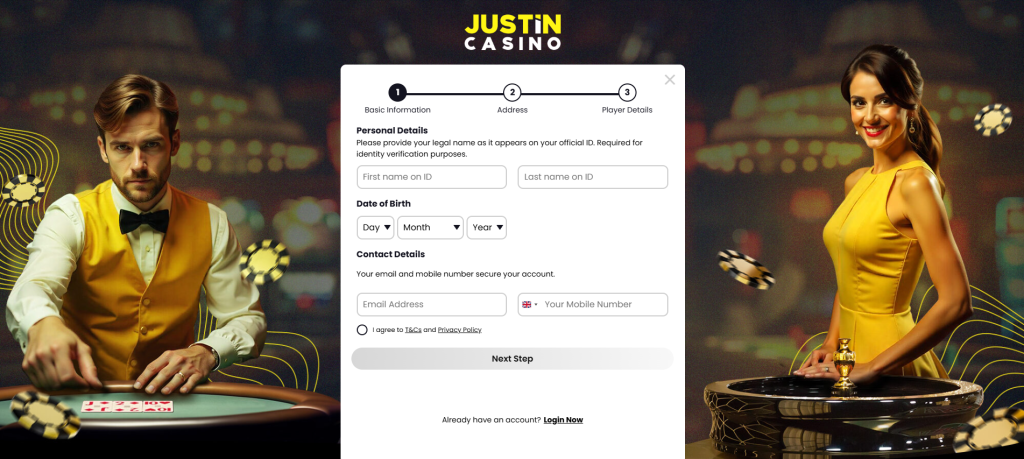
The registration journey involves these main actions:
- Open the Justin Casino website and select Join.
- Enter the personal and contact information requested in the form.
- Provide your current address and check every part of it.
- Choose a unique username and a secure password.
- Review the terms, privacy information and communication choices presented.
- Submit the form and follow any account setup or verification prompts.
Creating an account, verifying your identity and qualifying for a welcome offer are separate steps. After submitting your registration, check what your account asks you to do next. This may include reviewing your details, completing identity checks or setting a deposit limit before funding the account.
What You Need Before Registering
Have your details ready before opening the form. Enter information that reflects your current circumstances, particularly your name and address, because those details may be checked during account verification.
You must be aged 18 or over to use Justin Casino. Use your own information throughout registration, including contact details you can access and an address that matches your current residence.
| Information to prepare | What to check |
|---|---|
| Full name | Use your own name with consistent spelling across registration and identity documents. |
| Date of birth | Check the day, month and year before continuing. |
| Email address | Use an address you can access, as account recovery links are sent to your registered email. |
| Telephone details | Follow the format requested by the form and check the number carefully. |
| Current address | Include the correct house or flat number, street and postcode. |
| Username and password | Choose a unique username and keep your password private. |
| Verification evidence | Be ready to follow any requests shown in your account after registration. |
Browser autofill can save time, but it can also insert an old address, a different email or another person’s details from a shared device. Read every populated field before moving on.
If you already have a Justin account, use Login. Opening a second account with a different email address does not resolve forgotten credentials and conflicts with the one-account rule. Password recovery is the appropriate route when you cannot remember your existing access details.
Completing Your Registration Details
Work through the form in the order presented and correct errors before continuing. Accurate information makes later account checks easier and helps prevent avoidable problems with account access.
Your registration information must be complete, accurate and not misleading. If your circumstances change after joining, arrange for your account details to be updated rather than leaving an old address or other incorrect information on the account.
Enter Your Name and Date of Birth Accurately
Enter your name consistently with the identification you will use if verification is requested. Avoid substituting a nickname for your personal details or shortening information in a way that makes it difficult to match your account to your documents.
Check your date of birth separately from the other fields. A wrong year or reversed day and month can be easy to miss, especially when typing on a mobile phone. Review the completed entry rather than relying only on what you intended to type.
Check Your Email Address and Telephone Details
Your registered email is important for recovering access. Check for missing letters, spaces and an incorrect email domain before submitting the form. Use an inbox you can continue to access after registration.
For telephone details, follow the instructions beside the field. If the form rejects the number, check the requested format and any country selection before trying again. Make sure you have entered the intended number and have not added spaces or other characters that the field rejects.
Do not replace rejected contact details with invented information simply to move forward. Correct the entry or seek help with the displayed error.
Enter Your Current Address
Check the full address, including the house or flat number. A correct postcode does not make the rest of an address correct, particularly in buildings with several flats or properties with similar names.
If the form offers an address suggestion, read it before accepting it. Use the available editing options to correct missing or inaccurate information. Your account should reflect where you currently live, rather than a previous address retained by your browser.
Choosing Your Username and Password
Justin registration requires a unique username and a password. Choose credentials you can recognise and retain securely, since you will use them to access your account.
Your account credentials should remain private. Avoid sharing them with another person or leaving them saved on a device that other people can use without your permission.
Choose a Username You Can Recognise
Choose a username you will remember without making it unnecessarily revealing. If your preferred username is rejected, read the validation message and select another that meets the form’s requirements.
Keep a record of the username once registration succeeds. This is particularly useful if it differs from the names you use on other services. Justin’s recovery process accepts either your username or registered email address.
Create and Save a Strong Password
Use a password that you do not use elsewhere. Follow the requirements displayed in the registration form, and check that your password manager has saved the final version you submit.
A password manager can help you create and retain a strong password without relying on memory. On a shared device, avoid saving credentials where another user can retrieve them. Log out when you have finished using the account.
Reviewing Terms and Communication Preferences
Before completing registration, read the account conditions and review the choices presented in the form. Registering binds you to Justin’s Terms and Conditions, which also incorporate its privacy information.
Give particular attention to the sections about account details, verification, payment ownership and promotional conditions. These affect how you use the account after joining, so it is useful to understand them before making your first deposit.
Read the Account Terms and Privacy Information
The Privacy Policy explains how personal information is used and shared for services such as payments, identity verification, fraud prevention and risk management.
Read the relevant information before submitting your details. Account verification can involve checks against the personal information supplied during registration, which is another reason to make sure your entries are accurate.
Review the Communication Choices Presented
Look at each communication option shown during registration and choose the preferences that suit you. Read the accompanying wording so that you understand what you are selecting.
Keep your account email accessible regardless of your promotional preferences. It is the destination used for password recovery, and losing access to that inbox can make recovering your account more difficult.
Account Verification After Sign Up
After registering, open My Account, select Account Details and look for Verification Status. This section lists the evidence required for your account and shows the status of individual documents.
Follow the requests displayed there. Justin may ask for evidence of your age, identity, current address or payment method. The account’s verification section provides the appropriate route for submitting each item.
| Verification item | Evidence or process described | Practical check |
|---|---|---|
| Photo identification | Passport or driving licence through the identity-verification process | Use a clear image and follow the selfie instructions. |
| Proof of address | Recent utility bill or government-issued letter showing your name and current address | Check that the issue date is within the last three months. |
| Payment-method evidence | Evidence relating to the payment method registered on your account | Follow the upload instructions and conceal the middle eight digits when providing a card image. |
| Document uploads | JPG, PNG or PDF | Make sure the file is readable and submitted under the correct category. |
Find Your Verification Status
The account section is the starting point for checking what remains outstanding:
- Log in to your Justin account.
- Open My Account.
- Select Account Details.
- Review Verification Status.
- Use the relevant Provide link and follow the instructions for that item.
Return to the status section after completing the requested action. Checking the account status helps you identify whether an item has been accepted, remains under review or needs further attention.
Provide Photo Identification
For photo ID, use the identity-verification route provided in Account Details. The process asks for a clear image and a selfie. Keep your document ready and follow the on-screen instructions carefully.
When starting this process on a desktop computer, you may receive a QR code to scan with your mobile phone. Continue through the prompted mobile process and return to your account afterwards to check the status.
Use the designated photo-ID route rather than placing identity evidence in an unrelated upload category. Different verification items have their own submission instructions.
Provide Proof of Address or Payment Evidence When Requested
Address evidence should display your full name, current postal address and a recent issue date. Justin’s guidance specifies documents dated within the last three months. A cropped image that removes the date or address may prevent the document from meeting the stated criteria.
The address-verification process may offer a connection to your utility provider. If your provider is not listed, follow the alternative document-upload option presented.
For card evidence, follow the masking instructions. Justin asks customers providing a card image to cover the middle eight digits of the card number. Submit evidence through the account’s payment-verification route.
Check File Quality and Document Status
Before uploading, make sure the document is clear, all four corners are visible and the details can be read without guessing. Avoid glare, shadows and blurred photographs. Check that you have chosen the correct file rather than a thumbnail or an incomplete screenshot.
Justin supports JPG, PNG and PDF document uploads. Use the requested category and review the status afterwards. The account FAQs provide further instructions for individual verification tasks.
Setting Up Your Account Before Depositing
Once you have created your account, review your settings before adding funds. This is a useful point to choose a deposit limit and check that your personal details are correct.
Keep account setup separate from the decision to claim a promotion. First make sure you can access the account, understand any outstanding verification requests and have selected a spending boundary that suits your budget.
Choose a Deposit Limit That Fits Your Budget
Justin provides deposit-limit tools through its responsible gambling section. Use the available controls to set a limit based on what you can afford to spend.
A deposit limit should reflect your intended budget rather than the amount needed for a particular offer. Review the period and amount displayed before confirming your choice. If a deposit is later declined because a limit has been reached, check the account message and the limits already in place.
Check Account and Payment-Method Names
Payment methods must belong to, or be in the same name as, the person registered on the Justin account. Do not use another person’s card or payment account to fund your registration.
Check that your account name is accurate before adding a payment method. If a mismatch relates to an error in your registration details, arrange to correct those details rather than trying several different payment methods.
Sign Up and Welcome-Offer Qualification
Signing up creates your Justin account. Qualifying for the advertised welcome offer requires a separate funding action and participation in the promotional mechanic.
The welcome promotion offers a chance to win up to 500 free spins on Big Bass Splash. The maximum advertised quantity is not a fixed award for every registration. Read the Welcome Offer conditions before funding the account for promotional purposes.
Understand the Advertised Welcome Conditions
The main advertised conditions are:
| Condition | What it means for a new customer |
|---|---|
| New players only | The welcome offer is intended for new customers. |
| £10+ funding | Registration alone does not meet the advertised funding condition. |
| Up to 500 free spins on Big Bass Splash | The offer provides a chance to win a promotional prize rather than a guaranteed 500-spin allocation. |
| 10x bonus wagering | Bonus winnings carry wagering requirements before conversion to real money. |
| Conversion limited to lifetime deposits, up to £250 | The amount convertible to real money is restricted by your lifetime deposits and the stated cap. |
Free-spin winnings are credited as bonus cash. Bonus funds are separate from your withdrawable real-money balance, so receiving a promotional prize does not mean that its full value can immediately be withdrawn.
Only bonus wagers contribute towards the stated bonus wagering requirement. Real-money wagers do not contribute, and real funds are used before bonus funds. If you withdraw before meeting the wagering requirement, remaining bonus funds and outstanding promotions are forfeited.
Follow the Promotional Claim Process
Follow the promotional prompts presented after qualifying funding. The welcome terms describe a Mega Reel mechanic and state that using Quick deposit does not trigger it.
Read the pop-up before dismissing it. Closing the Mega Reel pop-up means it will not be made available again or re-credited until the next claim. This makes it useful to review the welcome conditions before depositing, rather than trying to reconstruct the claim process afterwards.
Fixing Sign-Up and Onboarding Problems
When something goes wrong, identify the stage where it happened. A rejected form field, an account-access problem and a declined document need different actions.
Read the exact error before changing information. Repeatedly submitting the same form or opening another account can make it harder to understand what has already been completed.
| Problem | First action |
|---|---|
| A personal-detail field is rejected | Check the entry and follow the field’s validation message. |
| Telephone details are rejected | Review the format requested and any country selection. |
| Your username is rejected | Read the message and choose a different unique username where required. |
| The form stops responding | Check your connection and whether registration completed before submitting again. |
| Details are associated with an existing account | Use account recovery rather than registering again. |
| Verification evidence is declined | Check the category, document date, image quality and submission route. |
A Form Field Is Rejected
Check for extra spaces, incorrect dates and mistakes introduced by autofill. On a mobile phone, make sure the keyboard has not inserted an unintended character or changed part of the entry.
For an address error, check each component separately. For a telephone error, follow the field’s instructions instead of changing the number itself. If the message remains after you have corrected the entry, record its wording so that support can understand the issue.
The Form Does Not Load or Submit
Check that your internet connection is working, then reopen the official website. If the issue persists, try an updated browser or another device. These are general ways to address a page that has stopped responding.
If the interruption happened after you submitted registration, first check whether you can log in or recover access using your registered email. Do not assume that a stalled screen means no account was created.
Avoid repeatedly pressing the submission control. Establish whether the account exists before restarting the registration process.
Registration Details Are Already Associated With an Account
Use Login and the Forgotten Password option if you may already have registered. Enter your username or registered email address, then follow the recovery link sent to your inbox.
Do not change personal details to get around an existing-account message. If you cannot recover access, ask support to help with the account you already hold.
A Verification Document Is Declined
Check the document against the stated criteria before uploading it again. Make sure it is under the right category, shows the required personal information and has not been cropped.
For proof of address, check that the document is dated within the last three months. For photographs, make sure all four corners are visible and the text is clear. Photo identification should be submitted through the designated process in My Account → Account Details.
Correct the specific problem before resubmitting. Sending the same unreadable image again is unlikely to resolve the issue.
Getting Help With Registration
If you cannot resolve a sign-up or onboarding problem, use the support access provided through the Justin Casino FAQs. Explain whether the issue concerns the form, an existing account, verification or the welcome promotion.
Keep one conversation for the same problem. Justin advises customers against creating multiple email chains or repeatedly sending follow-up messages about the same query, as this can delay handling.
Explain the Error Clearly
A useful support request should include:
- The step where the problem occurred.
- The exact wording of the error message.
- Whether you had already submitted the registration form.
- The device and browser you were using.
- The troubleshooting actions you have already tried.
A screenshot can help explain a form error, but check it for sensitive information before sharing it. Never include your password. Use the designated verification process for identity and payment documents rather than attaching them to an ordinary troubleshooting message.
Recover Access After Successful Registration
If registration succeeded but you cannot log in, select Forgotten Password beneath the login box. Enter your username or registered email address. Justin sends a recovery link to the email associated with the account.
Check that inbox, including its spam or junk folder, and follow the instructions in the recovery message. If you no longer have access to the registered email, explain that issue to support so that they can assist with your existing account.
Create Your Justin Casino Player Account
Start the registration flow to secure the latest sign-up reward for players in United Kingdom and access the current account offers.

Bonus Choices October 2026